How to Enable Data Roaming on iPhone and Android (MTN, Airtel, Glo & 9mobile Settings Guide)
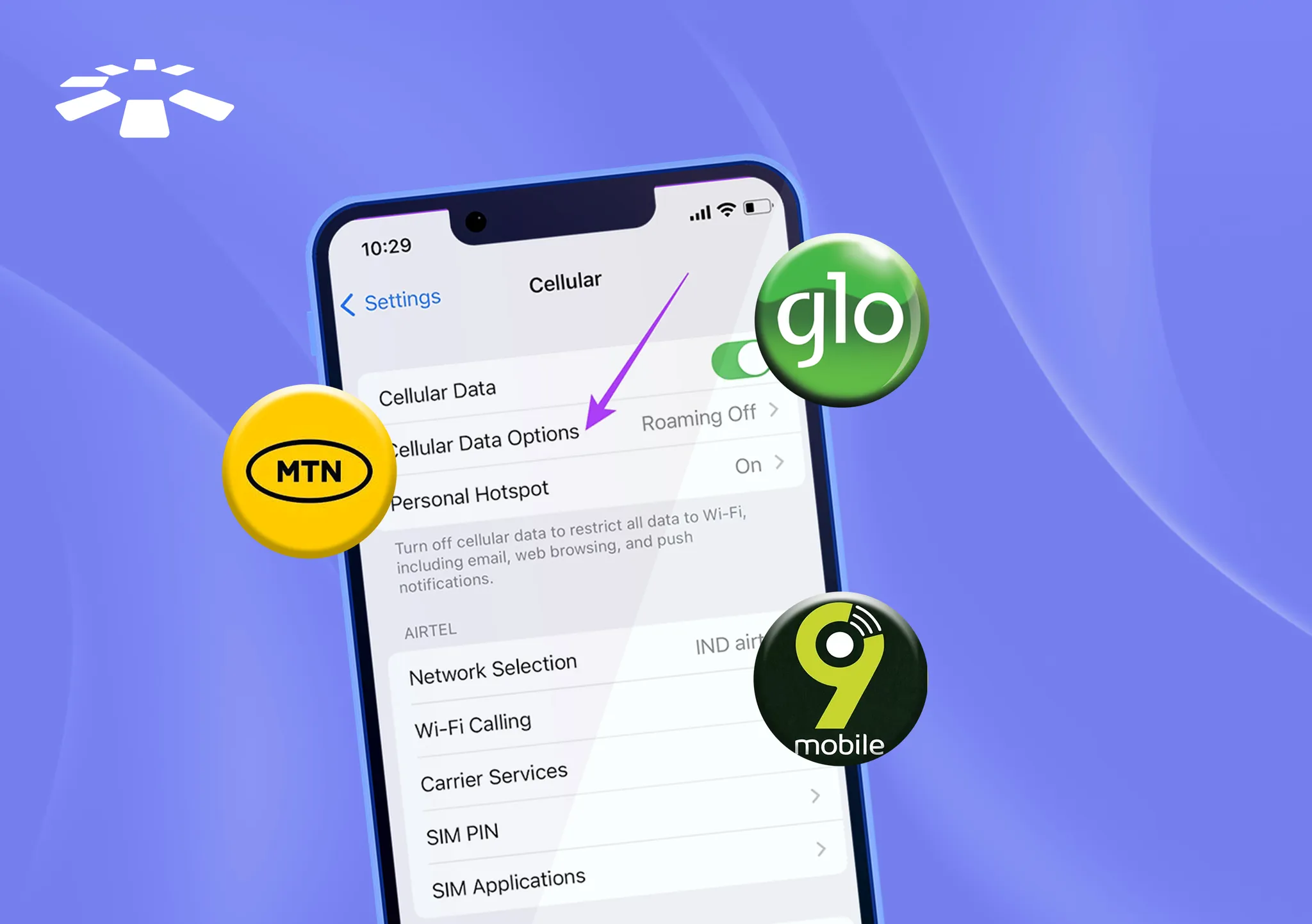
Data roaming lets you retain your Nigerian line while abroad. Like an eSIM, it offers a flexible way to stay connected without needing a new line or relying on public wifi for internet access.
Its approach is simple: A carrier like MTN signs an agreement with a foreign provider so visitors can connect to their network upon arrival. Once secured, you can text, call, and browse the internet with your Nigerian SIM card while in a foreign country.
However, data roaming doesn’t work automatically from the get-go. You must activate a bundle from your preferred network and enable data roaming on your device.
This guide explains how to enable data roaming on an iPhone or Android device for several networks: MTN, Airtel, Glo, and 9mobile.
Steps to Enable Data Roaming on iPhone (Airtel, MTN, 9mobile, Glo)
Firstly, you will need to activate a roaming plan for a specific network. You can use USSD, the mobile app, or their website. But that’s not all, you also have to enable data roaming in your phone settings.
Let’s say you are still in Nigeria, you will need to buy and activate a roaming bundle. Upon arrival at a supported travel destination, you will likely receive a notification from your network provider listing available roaming partners.
Then open your phone and enable data roaming to allow internet access. Once done, you should be able to browse and use your favorite apps without switching SIMs. Now, that’s the brief, let’s go over the details.
How to Activate a Roaming Plan for MTN, Airtel, Glo, and 9mobile
You can activate a roaming plan via USSD, mobile app, or website. It all depends on the network provider. Be sure to check your airtime balance before you start.
A. How to Activate Data Roaming Plan on MTN NG
To start, you will need to subscribe to an MTN roaming plan like the TravelPass.
With the MTN TravelPass, you get discounted data, SMS, and voice bundles in more than 50 countries.
You have three main ways to subscribe: USSD, the myMTN NG app, and the Zigi-Chatbot.

1. USSD:
- Simply Dial *312*6*1#
- Then, follow the prompt to complete
2. myMTN NG app
- Open the myMTN NG app
- Tap Roaming
- Select Country
- Then, choose from available plans (daily, weekly, or monthly)
- Tap Buy Now
- Follow the prompt to complete
3. Zigi-Chatbot
- Visit the MTN Website
- Tap the chat option on the bottom right
- Tap the “Start a New Conversation” button to chat on the web. Alternatively, you can choose to chat on WhatsApp, Telegram, MTN app, or Messenger.
NB: You can always choose from the available daily, weekly, or monthly plans. The same way you would buy MTN airtime in Nigeria. Additionally, you can purchase data roaming plans either for yourself or for a third party.
B. How to Activate Data Roaming Plan on Airtel
Airtel’s Roam The World connects users in over 60 countries. To activate, you may use either USSD, MyAirtelApp, or the Airtel website.
1. USSD:
- Dial *312#
- Choose a Roaming plan.
- Follow the prompt to complete.
2. MyAirtelApp
- Open the MyAirtel app
- Tap “Buy Bundles”
- Tap “Roaming Bundles”
- Choose from the available plans (daily or monthly)
- Follow the prompt to complete payment
3. Airtel Website:
- Visit airtel.com.ng/data-bundle
- Enter your Airtel phone number
- Tap the Roaming tab
- Select from the available roaming plans
- Tap Buy.
You will be redirected to complete your payment via Airtime, debit/credit card, or SmartCash.
C. How to Activate Data Roaming Plan on GLO
To activate a roaming bundle for the GLO network, you can use either USSD or the GLO Cafe app.
1. USSD:
- Dial *312 #
- Select option 5
- Choose a roaming option of your choice
- Follow the prompt to complete
2. GLO Cafe:
- Log in to the GLO Cafe app
- Find the Roaming menu
- Select bundle
- Follow the prompt to complete payment
NB: GLO lets you choose between prepaid and postpaid roaming plans. Postpaid customers will need to make a deposit of ₦50,000 and give a minimum notice of 72 hrs for international roaming to be activated
D. How to Activate Data Roaming Plan on 9mobile
To activate a roaming bundle on the 9mobile network, you may use USSD.
1. USSD
- Dial *312#
- Follow the prompt to activate
NB: For most networks, you don’t necessarily have to activate a roaming plan. Roaming is enabled by default on a pay-as-you-go basis. You just have to top up your credit to start.
How to Enable Data Roaming on an iPhone
To enable data roaming on an iPhone: Open settings > Tap Cellular or Mobile Service > Tap mobile data option > Turn Data Roaming switch on.

- First, open the settings app on your iPhone.
- Tap “Cellular” or “Mobile Service”.
- Then tap the Mobile Data option
- Toggle the Data Roaming switch on
Congratulations, you have successfully enabled data roaming on your iPhone.
How to Enable Data Roaming on an Android
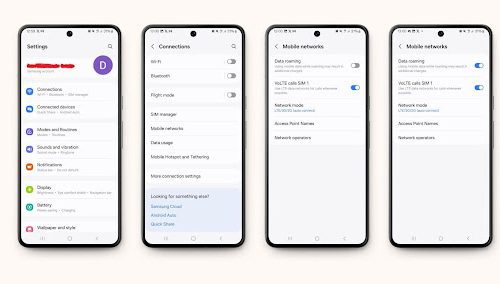
- Open the settings app on your Android device.
- Tap “Connections” or “SIM cards & mobile networks.”
- Then tap the Mobile Networks option
- Toggle the Data Roaming switch on
Congrats, you have successfully enabled data roaming on your Android device.
NB: Enabling data roaming is straightforward and less complicated than activating an eSIM on iPhone or Android. Hence, data roaming remains a standout option for using your SIM abroad
Frequently Asked Questions About Data Roaming on iPhone and Android
What is Data Roaming?
Data roaming is a smart technology that lets you stay connected outside your provider’s coverage area for calls, mobile data, and text. No SIM swap or complicated setups needed. You just enable data roaming on your device, purchase a roaming bundle, and you’re good to go.
How Does Data Roaming Work on iPhones and Android?
Data roaming works by connecting to a partner network when you’re outside your main provider’s coverage. You simply buy a roaming plan and enable roaming on your iPhone or Android. Then, you’re able to browse, chat, and stream on your device.
What are the Risks of Using Data Roaming?
The main risks posed by data roaming are increased financial charges when you call, browse, and text. You’re charged a higher premium than standard costs in your home country.
Other potential risks include hidden costs and potential vulnerabilities from your carrier exchanging data with another carrier.
Why is Data Roaming Not Working on iPhone?
Several factors could be responsible for data roaming not working on your device. The first is if data roaming is disabled in settings. You fix this by toggling data roaming back on. Other factors that can cause roaming not to work include inactive cellular data, carrier restrictions, or wrong network selection.
How to Know if Data Roaming is Working?
Here is how to know if you’re roaming successfully: You will find a different network than your home provider at the top of the screen. Secondly, your “No Service” notification automatically flips to “Connected,” and you’re able to browse, chat, and use your favorite apps.
Will I Get Charged For Data Roaming?
Of course, data roaming does incur high costs. Most times, higher than standard charges. You may want to compare several roaming bundles from separate carriers before you start. That said, a cheaper alternative to staying connected abroad is to buy eSIM online.
Conclusion
Data roaming gives the extra flexibility of retaining your original line while in a foreign country. But it doesn’t work automatically from the get-go. You must enable it on your device for it to work.
As an iPhone or Android user, there are two main things to do: First, activate a suitable bundle from your network provider. Second, ensure you enable data roaming on your device.
Once done, your Nigerian SIM connects to a foreign network to browse, call, and text like a local without having to swap SIMs.

 Get on iPhone
 Get on Android