How to Buy Apps on Apple App Store and Google Play Store in Nigeria
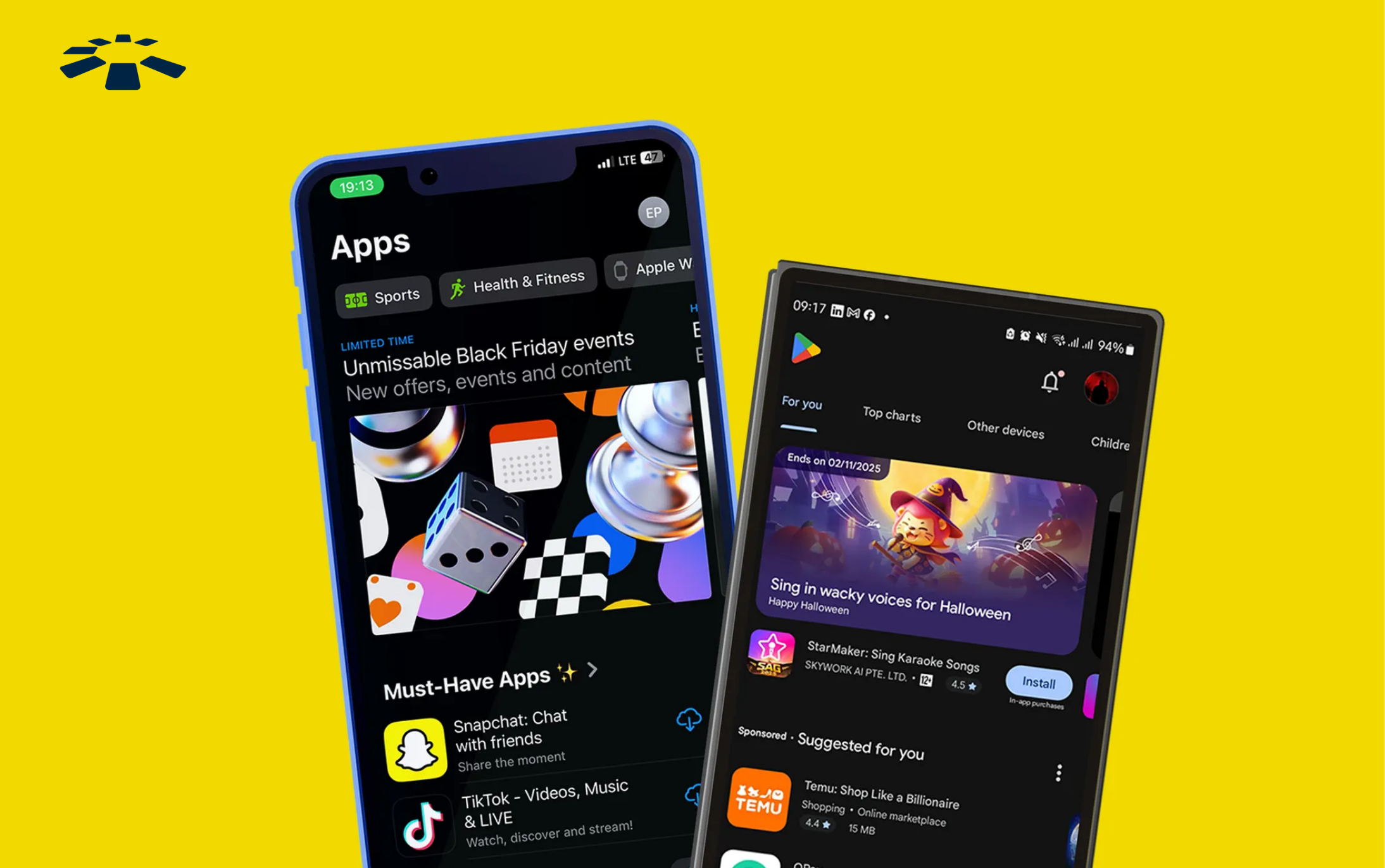
Making money in Nigeria is hard already; why should spending it be a hassle too? Normally, basic things like buying apps on the Google Play Store and Apple App Store shouldn’t be a hassle, especially when you have the money. Your money should simply do the work for you.
Sadly, it doesn’t work that way.
Even though the foreign exchange ban on Naira bank cards has been lifted, using them to make transactions on international platforms like the Play Store and App Store still feels like a gamble.
Your Naira bank card might work fine, but it can suddenly stop working or be rejected straight up.
You need a solid go-to option that works anytime and any day, as long as you have the money. In this guide, I’ll show you how to purchase apps on the Apple App Store and Google Play Store in Nigeria using two reliable payment methods.
How to Purchase Apps on the Apple App Store in Nigeria
To buy apps on the Apple App Store in Nigeria, get a virtual dollar card and add the card details as the payment method to your Apple account. Once linked, use your card to buy any apps on the App Store. Alternatively, you can buy an Apple gift card, redeem it on your Apple ID balance, and use it to purchase any apps on the App Store.
1. Virtual Dollar Card:
If you are looking for a payment method that works anytime you want to buy apps on the Apple App Store, then you need a virtual dollar card.
Even when Nigerian bank cards were restricted from making international transactions, virtual dollar cards were the silent superheroes that came to the rescue, allowing Nigerians to make international payments with ease.
These cards work well on international platforms like the App Store because they function as international cards that allow you to make payments in USD.
Think of virtual dollar cards as the travel visa that permits you to make payments on different international platforms, even while in Nigeria. To top it all off, you don’t need a dollar account before you get a virtual dollar card.
How to Pay For an App on the Apple App Store Using a Virtual Dollar Card
To buy apps on the App Store with a virtual dollar card, you must first create a dollar card from Cardtonic, fund it with Naira, add the card as a payment method, and then use it to buy apps on the App Store.
Step 1: Get a virtual dollar card from Cardtonic.
Sure, there are various virtual dollar card providers in Nigeria, but if you want a card that works without restrictions or high creation fees, Cardtonic is the best option.
Here is a step-by-step process on how to create a virtual dollar card on Cardtonic:
- Visit the Cardtonic website or download the app on the App Store.
- Log in to your account.
- Navigate to the ‘Virtual Dollar Card’ section.
- Click the ‘Continue’ button and follow the on-screen instructions to complete your process.
- Your virtual dollar card should be ready for use within 5 to 10 minutes.
- Fund your card with Naira.
You can also watch the video above to walk you through the process.
Step 2: Change your Apple ID region to the US.
This aspect is important because the country on your payment method must match the region of your Apple ID.
Here is a step-by-step process on how to change your Apple ID region:
- Launch the ‘Settings’ app on your Apple device.
- Click your account icon and navigate to the ‘Payment and Shipping’ section.
- Navigate to the ‘Billing Address’ section and click the ‘Country/Region’ option.
- Select ‘United States’ from the list.
- Save your changes.
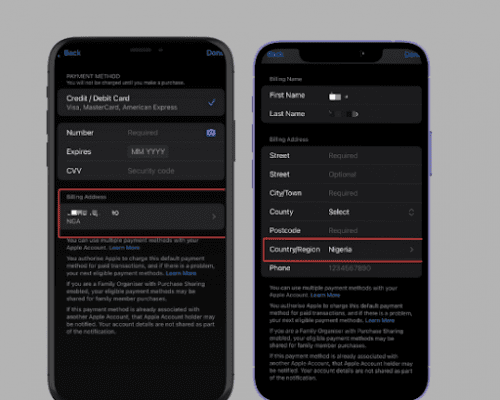
Step 3: Add your virtual dollar card as the Apple payment method.
Here is a step-by-step process on how to add a virtual dollar card as a payment method:
- Navigate to the ‘Payment and Shipping’ section in your Apple device settings.
- Click the ‘Add Payment Method.
- Enter your virtual dollar card details. I.e., Number, expiry date, and CVV.
- Click the ‘Done’ option to save your changes.
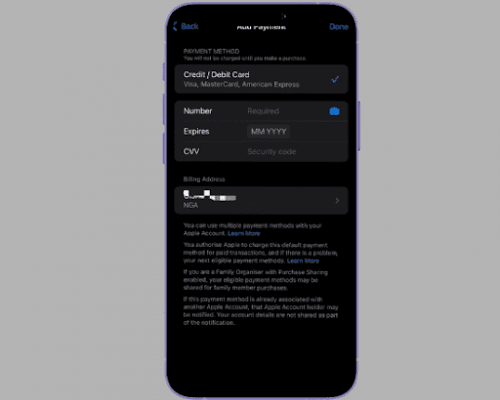
Step 4: Open the App Store app on your device, select the app you want to buy, and use your virtual dollar card as the payment method.
Once your purchase is verified, the app will be installed on your device. There is no unnecessary payment drama when you use this payment method.
2. Apple Gift Card:
An Apple gift card is another solid option you can bank on whenever you want to purchase apps on the App Store in Nigeria.
Of course, this might sound surprising at first, as most Nigerians, including me, think the only thing an Apple gift card can be used for in Nigeria is to exchange it for cash on gift card platforms.
Spoiler alert: Apple gift cards can also handle any payments you want to make in the Apple ecosystem. Whether you want to buy apps or pay for subscriptions, you can use Apple gift cards without facing any payment drama.
How to Use an Apple Gift Card to Buy Apps on the App Store
To buy apps on the App Store with an Apple gift card, you must first get a gift card on Cardtonic, redeem it to top up your Apple account balance, and then use the balance to buy your desired app.
Step 1: Buy an authentic Apple gift card on Cardtonic.
This is very important, as fake gift cards are quite easy to get and you wouldn’t even suspect. However, when you buy an Apple gift card on Cardtonic, a reputable gift card app in Nigeria, you have the peace of mind that it is authentic, plus you will get it at an affordable rate.
Here is a step-by-step process on how to buy an Apple gift card on Cardtonic:
- Visit the Cardtonic website or download the app.
- Navigate to the ‘Buy Gift Card’ section.
- Select ‘United States’ from the list of countries.
- Select ‘App Store & iTunes US’ from the list of gift cards.
- Select the specific amount you want to buy. E.g., $10, $20, $100, etc.
- Click the ‘Proceed’ button and follow the onscreen instructions to complete the process.
- Your gift card code will be delivered to your email within a few minutes.
You can also watch the video below to walk you through the process.
Step 2: Change your Apple ID region to the US.
This is important because Apple gift cards are region-locked. I.e., they can only be redeemed in their designated region.
For instance, a US Apple gift card can only be redeemed on a US-based Apple account. It is the simple rule you must follow whenever you use this payment method.
Here is a step-by-step process on how to change your Apple ID region
- Launch the ‘Settings’ app on your Apple device.
- Click your account icon and navigate to the ‘Payment and Shipping’ section.
- Navigate to the ‘Billing Address’ section and click the ‘Country/Region’ option.
- Select ‘United States’ from the list.
- Save your changes.
Step 3: Redeem the Apple gift card to top up your Apple balance.
Here’s a step-by-step process on how to redeem an Apple gift card.
- Copy the gift card code delivered to your email or scratch the silver coating on the back of your gift card if it is a physical card.
- Launch the ‘App Store’ app on your device.
- Click your account icon on the right side and select the ‘Redeem Gift Card or Code’ option.
- Click the ‘Enter Your Code Manually’ option and paste your gift card code there.
- Click the ‘Redeem’ button to complete the process.
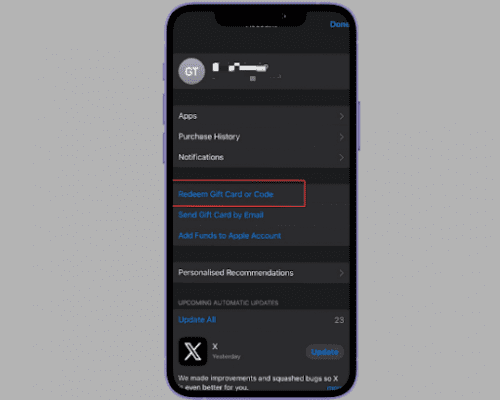
Then your Apple balance will be topped up.
Step 4: Find and select the specific app you want to purchase on the App Store.
Your Apple balance will automatically be used to pay for the app.
Once the download is complete, the app will be installed on your device.
How to Purchase Apps on the Google Play Store in Nigeria
To buy apps on the Google Play Store in Nigeria, get a virtual dollar card and add the card details as your payment method to your Google Play Store account. Once linked, use your card to buy any apps on the Play Store. Alternatively, you can buy a Google Play gift card and redeem it on your Google Play Store account, then use your balance to purchase any apps on the Play Store.
1. Virtual Dollar Card:
If you’re looking for a payment method that allows you to buy apps on the Google Play Store without any hassle, then you need a virtual dollar card.
This card works well because it is not restricted by the foreign exchange ban or managed by Nigerian banks. Instead, it works like an international bank card, allowing you to make payments in USD.
What makes this card even better is that it doesn’t require you to create a dollar account, which means you don’t have to submit countless documents or go through unnecessary stress before you get a virtual dollar card. Instead, you can easily get one from the comfort of your home within ten minutes and use it to buy apps on the Play Store.
How to Pay For an App on the Google Play Store Using a Virtual Dollar Card
To buy apps on the Google Play Store with a virtual dollar card, you must first get a dollar card from Cardtonic, fund it with Naira, add the card as a payment method, and then use it to buy apps on the Play Store.
Step 1: Get a virtual dollar card from Cardtonic.
This is the recommended option in this step because Cardtonic virtual dollar cards are easy to create and globally acceptable. They are also affordable; you can get one for $1.5 (deducted from your Naira balance).
Here is a step-by-step process on how to create a virtual dollar card on Cardtonic:
- Visit the Cardtonic website or download the app.
- Log in to your account.
- Navigate to the ‘Virtual Dollar Card’ section.
- Click the ‘Continue’ button and follow the on-screen instructions to complete your process.
- Your virtual dollar card should be ready for use within 5 to 10 minutes.
- Fund your card with Naira.
You can also watch the video below to walk you through the process.
Step 2: Change your Google account region to the US.
This is important because the country on your payment method must match the region of your Google account.
Here’s a step-by-step process on how to change your Google account region:
- Launch the ‘Play Store’ app on your device.
- Click the ‘Payment & Subscriptions’ option.
- Select ‘Payment methods’ from the list.
- Click the ‘More Payment settings’ option. This will redirect you to a web browser.
- Click the ‘Add a payment method’ button.
- Click the ‘Billing address’ icon and select the United States from the list of countries.
- Once you save your changes, redirect to the ‘Billing address’ page and enter your card details.
- Click the ‘Save’ button to save your changes.
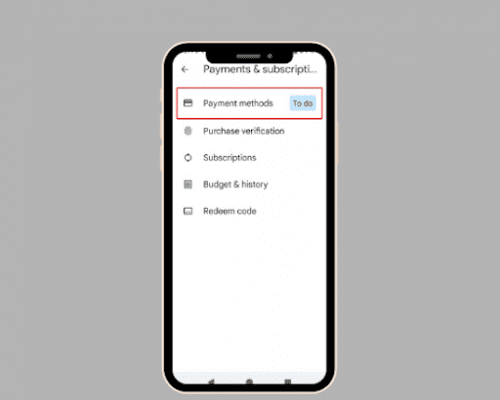
Step 3: Select the app you want to buy on the Play Store, then use your virtual dollar card as the payment method.
Once your purchase is complete, the app will be installed on your device. Then, you can use the app to perform your task.
2. Google Play Gift Card:
A Google Play gift card is another solid option for buying apps on the Google Play Store in Nigeria.
Surprisingly, most Nigerians, including me, didn’t know this gift card existed until a friend introduced it to me.
Here is a quick thing you need to know about Google Play gift cards. They are preloaded with funds, e.g., $50, $100, etc. This means you can buy one and use the money on it to top up your Google balance, just like the way we top up our phone line with recharge cards. Once topped up, you can use this balance to purchase apps on the Google Play Store. This option eliminates unnecessary payment drama.
How to Use a Google Play Gift Card to Buy Apps on the Google Play Store
To purchase apps on the Google Play Store with a Google Play gift card, you must first buy an authentic gift card on Cardtonic, redeem it to top up your Google account balance, and then use the balance to buy your desired app.
Step 1: Buy an authentic Google Play gift card on Cardtonic.
This is where most people make costly mistakes. They often end up buying fake gift cards from shady platforms or at inflated prices.
However, when you buy Google Play gift cards on Cardtonic, a gift card app with a solid track record in Nigeria, you have the peace of mind that the gift card is authentic and will also be delivered to your email instantly.
Here is a step-by-step process on how to buy Google Play Gift Cards on Cardtonic:
- Visit the Cardtonic website or download the app.
- Log in to your account.
- Navigate to the ‘Buy Gift Card’ section.
- Select ‘United Kingdom’ or ‘United States’ from the list of countries.
- Select ‘Google Play’ from the list of gift cards.
- Select the specific amount you want to buy. E.g., $10, $20, $100, etc.
- Click the ‘Proceed’ button and follow the onscreen instructions to complete the process.
- Your gift card code will be delivered to your email within a few minutes.
You can also watch the video below to walk you through the process.
Step 2: Change your Google account region to the US or the United Kingdom, depending on the region of your gift card.
This is because Google Play gift cards are region-locked. I.e., they can only be redeemed in their designated region. For instance, a UK Google Play gift card can only be redeemed on a UK Google account.
Here is a step-by-step process on how to change your Google account region:
- Launch the ‘Play Store’ app on your device.
- Click the ‘Payment & Subscriptions’ option.
- Select ‘Payment methods’ from the list.
- Click the ‘More Payment settings’ option. This will redirect you to a web browser.
- Click the ‘Add a payment method’ button.
- Click the ‘Billing address’ icon and select your gift card region. (i.e., if it’s a US Google Play gift card, change your address to the US)
- Click the ‘Save’ button to save your changes.
Step 3: Redeem your gift card to top up your Google balance.
Follow these steps to redeem your Google Play gift card.
- Copy the gift card code delivered to your email.
- Launch the Play Store app on your device.
- Click your account icon.
- Click the ‘Payments & Subscriptions’ option in the list.
- Tap the ‘Redeem Code’ option.
- Paste the gift card code you copied and click the ‘Redeem’ button to redeem your gift card.
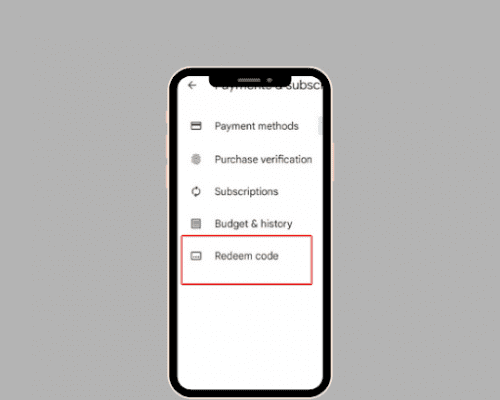
Step 4: Find and select the specific app you want to buy on the Google Play Store.
Step 5: Click the purchase button on the app. This will redirect you to the payment page.
Step 6: Select ‘Google Balance’ as your payment method, and the cost of the app will automatically be deducted from your balance.
Once you have completed your purchase, the app will be installed on your device. Then, you can use your app with ease.
Frequently Asked Questions About Buying Apps on the App Store and Google Play Store
1. How Do I Download an App From the Apple App Store?
Open the “App Store” app on your Apple device, and click the “Apps” tab at the bottom of the app. Scroll through each section, either the Apple Store free apps or the paid ones. You can also use the search icon to search for the specific app you want to download. Once you find the app you need, click the “Get” button, and you will be prompted to authenticate the download using your Face ID or Apple ID code. The download should automatically begin, and the app should appear on your homescreen after the download is complete.
2. Why is My Payment Method Declined on Apple?
Possible reasons are: you entered incorrect bank card information, your Apple ID address is different from your card billing address, or your card has expired. Here are simple ways to resolve this error: double-check your bank information, ensure your Apple ID address matches your card billing address, or try an alternative payment method like an Apple gift card.
3. How Can I Change My Payment Method on the App Store?
Here is how to change your payment method on the App Store: Open the App Store app on your device, click your account icon, and navigate to the “Payment & Shipping’ section. You will be prompted to sign in with your Apple ID, edit your payment method, and click the “Save” button to save your changes. Your new payment should be saved automatically.
4. Can I Convert My Google Play Gift Card Balance to Cash?
No, you can’t directly convert your Google Play gift card to cash, as they are mainly designed to make purchases on the Google Play Store. However, there is a way out. To bypass this limitation, sell your gift card for cash on a gift card platform like Cardtonic and get the equivalent amount in Naira.
6. Where Can I Buy an Apple Gift Card in Nigeria?
You can buy an Apple gift card on Cardtonic, a reputable gift card app in Nigeria. This app allows you to purchase authentic Apple gift cards at affordable prices and instantly delivers the gift card code to your email.
7. How Can I Check My Apple Gift Card Balance?
Here is how to check your Apple gift card balance. Visit the Apple balance checker webpage and click the “See balance on your gift card” button. Sign in to your account, and click the “Check balance” button in the upper right corner of the page. Enter your gift card code and click the “Check balance” button to check your balance.
Conclusion
Basic things like purchasing apps on the App Store and Play Store in Nigeria should be smooth, convenient, and fast. After all, it is your money, and spending it should be the easiest thing.
That is why I have shown you two reliable methods you can always bank on whenever you want to buy apps on these platforms: virtual dollar cards and gift cards.
Virtual dollar cards work because they function as international bank cards. Gift cards act as a solid alternative because they are designed to make payments on these platforms convenient.
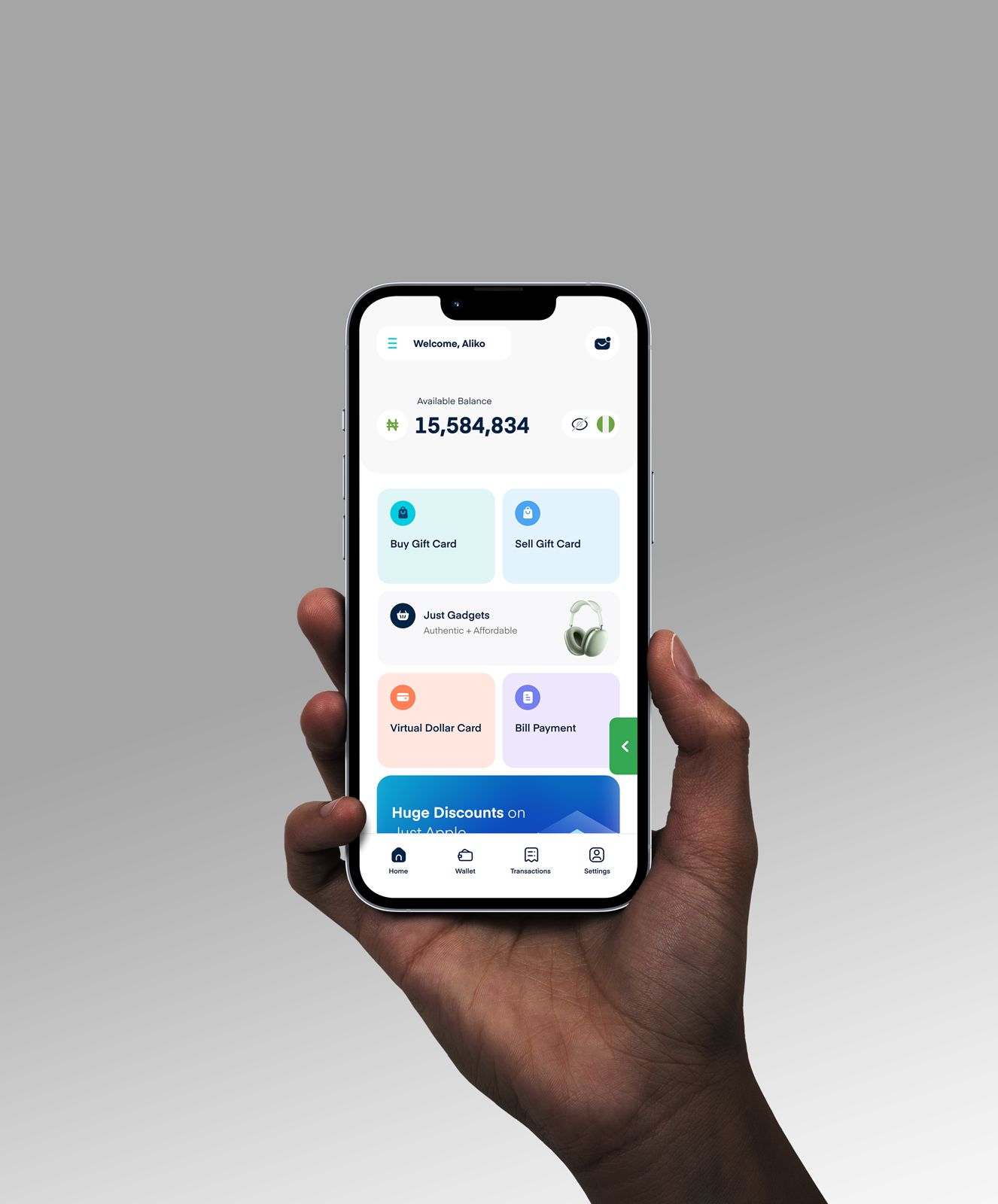
Whether you want to use a virtual dollar card or a gift card to buy apps from the Google Play Store or App Store in Nigeria, you can easily get one on Cardtonic.

 Get on iPhone
 Get on Android